About this article
This article is an overview and some tips on WHS 2011 based on my own personal experience using WHS 2011 as a File/Media Server with some third party software and the way I chose to configure and use WHS 2011.
I am using WHS 2011 as a file server to store documents, data, photographic images, program files, music & video media, etc. used throughout my home network as well as using the WHS 2011 box as a sometime work station. I know most user forums tell you to only use WHS 2011 as a server and not a work station but I think “so what”, the box is running 24/7 and if I need to download a large bit torrent file(s) or encode a video file and don’t want to tie up a dedicated computer and the WHS 2011 box is fast enough to handle the job then why not.
This article is divided into the following subjects:
· WHS 2011 – My Network Hardware
· WHS 2011 – Drive Extenders/Drive Pools
· WHS 2011 – Using an SSD as a System Drive
· WHS 2011 – Cloning the System Drive
· WHS 2011 – Remote Web Access
· WHS 2011 – ROKU 2 XD Streaming Media Box (wireless LAN)
· WHS 2011 – PLEX Media Server
· WHS 2011 – Anti-Virus/Firewall Software
· WHS 2011 – Backup
· WHS 2011 – Z77 Motherboard Chipsets and Intel USB 3.0 Controllers
WHS 2011 – My Network Hardware
Here is how my basic home network is set up:
Cable Internet: 30 Mbps download speed, 9 Mbps upload speed
Main Router – Netgear WNR3500L, Gigabit (wired LAN), 144Mbps (wireless LAN)
WHS 2011 – Drive Extenders/Drive Pools
You can use Disk Management to create spanned dynamic disks, which is simply using multiple hard drives as if it were one big drive. A better way to do this is with Drive Extender/Drive Pool software. While WHS v1 had Drive Extender built in, Microsoft did not include it with WHS 2011 however there are some drive pool software products available for around $20.
Stablebit DrivePool
This add-in will let you add multiple hard drives into one combined storage pool on the Windows Home Server. You can create folder shares on this storage pool, and each folder on the pool can either be duplicated or not duplicated. Files placed in duplicated folders will be protected against single drive failure by being placed onto two separate hard drives.
Features:
This is a good drive extender program, stable and easy to set up and use. DrivePool is limited to only one drive pool though. I used it for several months before all of a sudden Acronis Backup 2012 began having server logon issues. Don’t know why, Windows update I think changed something. Usually costs around $20.
Drive Bender
$20-$25 – I went to this when I began having problems with DrivePool and Acronis Backup. It’s just a little bit harder to setup but works very well and is stable. Glad I switched. Has all the features of DrivePool above as well as being able to setup multiple drive pools. I have one pool for my data and one pool for my backups.
With both Drive Bender or DrivePool if you have a drive letter assigned to a physical drive in a drive pool you can access & use the drive as a regular drive simultaneously with the drive pool since they are both based on the NTFS file system.
WHS 2011 – Using an SSD as a System Drive
Some people say using an SSD as a server system drive is overkill and unnecessary and it might have been before the drive prices started coming down.
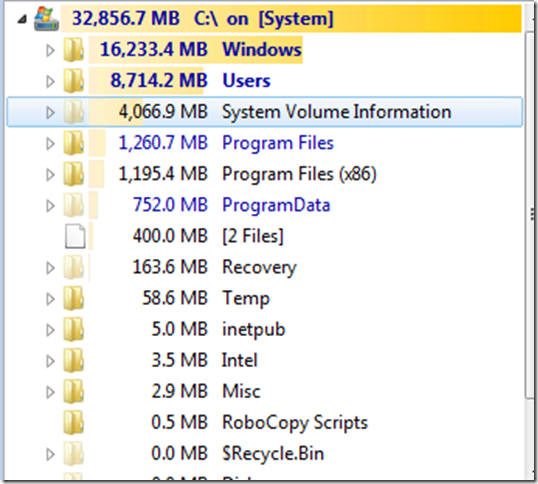
A fresh install of WHS 2011 will boot up in a little over a minute but after configuring shares, drive pool software, loading network shares, media server software, etc. you’re looking at over 5 minute boot times. Media server software like Plex Media Server is very disk access intensive.
Granted WHS is extremely stable and mine never needs rebooted bar the occasional software update or me messing with the system, you can greatly speed up response times and reduce the boot up time from 5 minutes to 60 seconds by installing a 60GB SSD as the system drive.
60GB should be plenty big enough.
I got mine free as a promotion. OCZ Agility 3 AGT3-25SAT3-60G 2.5" 60GB SATA III, you should pick up something like this with 500 MBs read/write for $50-60.

While SSD’s don’t need to be defragged I use Diskeeper to reduce read/writes to the drive as well as to help with TRIM.
WHS 2011 – Cloning the System Drive
WHS uses Unique DiskID numbers found in the partition table of each disk to help identify them. The WHS Storage Manager stores these DiskIDs and other important information about its disks, folders and volumes in the windows registry.
When using disk imaging software to migrate an operating system from one disk to another disk, these DiskID numbers are typically not cloned during the disk imaging operation. When the destination disk is of a different size (typically larger) the volume geometry and as a result the volume identifier will also change.
A newly imaged WHS system disk with mismatched DiskID number, volume geometry and/or volume identifiers will still boot normally but the server will not be able perform its functions. The WHS console will exhibit a number of Critical Health Warnings the most easily identifiable of which is the "Backup Service is not Running" warning.
For WHS to function properly, the DiskIDs, volume geometry and volume identifiers saved in the registry must match that of the newly imaged system disk. These instructions show how to obtain and clone the DiskID when performing an imaging operation as well as update the windows registry with the system disk's description, new volume geometry and volume identifiers.
The text above as well as the complete instructions can be found here: How to successfully clone and upgrade a WHS system drive.
This process is pretty easy to do, basically you just:
1. Use Diskpart to get your existing system drive uniqueid
2. Use a cloning program like the free download Macrium Reflect to clone the system drive to the new SSD
3. Make sure the SSD system partition is marked active
4. Use Diskpart to set the uniqueid on the SSD to the old system drives uniquid
5. If the SSD doesn’t boot you may need to boot from a Windows disk (WHS, Win 7, whatever) or USB with the Win disk on it and let it repair your boot files.
WHS 2011 – Remote Web Access
There are many web articles to show you how to setup your WHS 2011 Server to allow web access. Just Google “whs remote access” and pick one but here are a few tips:
WHS 2011 – ROKU Streaming Media Box
I am using two ROKU 2 XD Streaming Media Box’s to wirelessly stream media to two HDTV’S.
This is a fantastic product; small, easy to setup and use. No PC is needed to access free or paid internet media services like Netflix, Hulu, HBO, Crackle, Pandora, Cnet, etc. and/or stream media to the ROKU with media server software such as the free Plex Media Server.
I don’t have any problem with the I3 on the Server pushing two 720p simultaneous media streams (AVI, MP4, MKV) to two HD TV’s with no lags or pauses (even while encoding srt subtitles, MP4 media with no subtitles use even less CPU resources). This is with each ROKU box connected to separate wireless routers although I have used two ROKU’s connected to the same router before.
I was surprised to find when I was testing and building the server that the I3-2120 CPU (hyper-threading) was faster than my Q6600 Quad (no hyper-threading).
As an example, using Handbrake to encode a 720p video with a high profile setting on the I3-2120 yields 54fps vs. 38fps for the Q6600. The I7-3770 stock encodes 720p around 112fps. My laptop Core2 Duo encodes the same movie around 10fps.
WHS 2011 – PLEX Media Server
I use the free open source PLEX Media Server for Windows software to manage and stream my video media.
This is a great program, easy to setup and use. The only thing I can really fault this software on is the Plex Media Manager is browser based and can be slow to use if your video library is large and managing your video metadata can be little limited however I’ve written and released the free to download and use Plex Editor for Windows (donations accepted) software that addresses these issues.
Note: Plex will not run as a system service naturally so you have to have a user profile logged on permanently to run the software.
WHS 2011 – Anti-Virus/Firewall Software
WHS 2011 – Backup
WHS 2011 Backup works well. I use several backup solutions, programs.
Timeline Backups (Backup & automatic versioning of docs, images and other files, allows you to preview & restore versions of your files from different points in time.)
WHS 2011 – Z77 Motherboard Chipsets and Intel USB 3.0 Controllers
I am using an ASRock Z77 Pro4 motherboard in my WHS 2011 Server. This board is a great inexpensive board with plenty of features including 4 SATA III & 4 SATA II ports. When using an Intel CPU with integrated graphics there is no need for a video card should you want monitor output.
This motherboard is not supported for WHS 2011 use but all of the included drivers install on WHS 2011 with no problem with the exception of the Intel Z77 USB 3.0 drivers.
The ASRock Z77 Pro4 motherboard comes with:
· 6 rear panel USB 2.0 ports
· 2 rear panel USB 3.0 ports
· 4 internal USB 2.0 ports
· 2 internal USB 3.0 ports.
Intel in their infinite wisdom has chosen to limit the Intel Z77 USB 3.0 driver to home user/workstation operating systems only. The Intel Z77 USB 3.0 drivers will not install in WHS 2011. There is a hack on the web where you can modify the install files and manually install the Intel USB 3.0 drivers so that you don’t have error icons in your device manager but my WD Essential USB 3.0 drive will only connect at USB 2.0 speeds (30-34Mbps read/write). I have the Micro ATX version of this motherboard (ASRock Z77 Pro4-M) running Windows 7 and the same WD Essential USB 3.0 drive gets 100Mbps read/write speeds.
Looks like if you want or have to use a Z77 chipset board that only has the Intel USB 3.0 controller and you want or need USB 3.0 speeds you’ll have to install an add on USB board that works with WHS 2011 (Thanks a lot Intel).
read more
This article is an overview and some tips on WHS 2011 based on my own personal experience using WHS 2011 as a File/Media Server with some third party software and the way I chose to configure and use WHS 2011.
I am using WHS 2011 as a file server to store documents, data, photographic images, program files, music & video media, etc. used throughout my home network as well as using the WHS 2011 box as a sometime work station. I know most user forums tell you to only use WHS 2011 as a server and not a work station but I think “so what”, the box is running 24/7 and if I need to download a large bit torrent file(s) or encode a video file and don’t want to tie up a dedicated computer and the WHS 2011 box is fast enough to handle the job then why not.
This article is divided into the following subjects:
· WHS 2011 – My Network Hardware
· WHS 2011 – Drive Extenders/Drive Pools
· WHS 2011 – Using an SSD as a System Drive
· WHS 2011 – Cloning the System Drive
· WHS 2011 – Remote Web Access
· WHS 2011 – ROKU 2 XD Streaming Media Box (wireless LAN)
· WHS 2011 – PLEX Media Server
· WHS 2011 – Anti-Virus/Firewall Software
· WHS 2011 – Backup
· WHS 2011 – Z77 Motherboard Chipsets and Intel USB 3.0 Controllers
WHS 2011 – My Network Hardware
Here is how my basic home network is set up:
Cable Internet: 30 Mbps download speed, 9 Mbps upload speed
Main Router – Netgear WNR3500L, Gigabit (wired LAN), 144Mbps (wireless LAN)
- Setup as the DHCP Server
- Serves: a. Second Router
b. Office desktop computer (wired LAN)
c. Office printer (wired LAN)
d. ROKU 2 XD Streaming media box (wireless LAN)
e. Kindle reader (wireless LAN)
f. Guest access (wireless LAN)
- Gigabit (wired LAN), wireless Dual-Band 2.4ghz @ 144Mbps & 5ghz @ 450Mbps, although I don’t have any wireless adapters with a 3x3 antenna so my N-band max connect speed is limited to 300 Mbps which yields 90-130Mbps or 9-13 MB’s per second actual throughput. (Note: any wireless media streaming box, TV or DVD is most likely only going to have 1 receiving antenna built in or 144 Mbps max capability with wireless N since from the manufactures point of view anything else is wasted capability for streaming HD.)
- DHCP Server turned off (let the main router be the DHCP)
- Serves:
a. Main computer – (wired LAN), I7-3770, 120GB SSD
b. WHS 2011 Server – (wired LAN), I3-2120, 60GB SSD system drive, 2-1TB 7200 SATA II’s (drive pool #1), 2-2TB 7200 SATA III’s (drive pool #2).
c. Workstation – (wired LAN), Q6600 Core2 Quad, 120GB SSD
d. Laptop – (wireless LAN), Core2 Duo, 256GB SSD
e. ROKU Streaming Media Box - (wireless LAN)
f. DVD (wired LAN)
WHS 2011 – Drive Extenders/Drive Pools
You can use Disk Management to create spanned dynamic disks, which is simply using multiple hard drives as if it were one big drive. A better way to do this is with Drive Extender/Drive Pool software. While WHS v1 had Drive Extender built in, Microsoft did not include it with WHS 2011 however there are some drive pool software products available for around $20.
Stablebit DrivePool
This add-in will let you add multiple hard drives into one combined storage pool on the Windows Home Server. You can create folder shares on this storage pool, and each folder on the pool can either be duplicated or not duplicated. Files placed in duplicated folders will be protected against single drive failure by being placed onto two separate hard drives.
Features:
- Combine all your hard drives into one big storage pool (except the system drive with the OS).
- Add and remove drives from the pool at any time without re-partitioning or manually moving folders.
- Create duplicated folders on the storage drive pool that are protected against single drive failure. If a drive fails on which a duplicated file was stored, the contents of that file will remain readable even without the drive.
This is a good drive extender program, stable and easy to set up and use. DrivePool is limited to only one drive pool though. I used it for several months before all of a sudden Acronis Backup 2012 began having server logon issues. Don’t know why, Windows update I think changed something. Usually costs around $20.
Drive Bender
$20-$25 – I went to this when I began having problems with DrivePool and Acronis Backup. It’s just a little bit harder to setup but works very well and is stable. Glad I switched. Has all the features of DrivePool above as well as being able to setup multiple drive pools. I have one pool for my data and one pool for my backups.
With both Drive Bender or DrivePool if you have a drive letter assigned to a physical drive in a drive pool you can access & use the drive as a regular drive simultaneously with the drive pool since they are both based on the NTFS file system.
WHS 2011 – Using an SSD as a System Drive
Some people say using an SSD as a server system drive is overkill and unnecessary and it might have been before the drive prices started coming down.
A fresh install of WHS 2011 will boot up in a little over a minute but after configuring shares, drive pool software, loading network shares, media server software, etc. you’re looking at over 5 minute boot times. Media server software like Plex Media Server is very disk access intensive.
Granted WHS is extremely stable and mine never needs rebooted bar the occasional software update or me messing with the system, you can greatly speed up response times and reduce the boot up time from 5 minutes to 60 seconds by installing a 60GB SSD as the system drive.
60GB should be plenty big enough.

I got mine free as a promotion. OCZ Agility 3 AGT3-25SAT3-60G 2.5" 60GB SATA III, you should pick up something like this with 500 MBs read/write for $50-60.

While SSD’s don’t need to be defragged I use Diskeeper to reduce read/writes to the drive as well as to help with TRIM.
WHS 2011 – Cloning the System Drive
WHS uses Unique DiskID numbers found in the partition table of each disk to help identify them. The WHS Storage Manager stores these DiskIDs and other important information about its disks, folders and volumes in the windows registry.
When using disk imaging software to migrate an operating system from one disk to another disk, these DiskID numbers are typically not cloned during the disk imaging operation. When the destination disk is of a different size (typically larger) the volume geometry and as a result the volume identifier will also change.
A newly imaged WHS system disk with mismatched DiskID number, volume geometry and/or volume identifiers will still boot normally but the server will not be able perform its functions. The WHS console will exhibit a number of Critical Health Warnings the most easily identifiable of which is the "Backup Service is not Running" warning.
For WHS to function properly, the DiskIDs, volume geometry and volume identifiers saved in the registry must match that of the newly imaged system disk. These instructions show how to obtain and clone the DiskID when performing an imaging operation as well as update the windows registry with the system disk's description, new volume geometry and volume identifiers.
The text above as well as the complete instructions can be found here: How to successfully clone and upgrade a WHS system drive.
This process is pretty easy to do, basically you just:
1. Use Diskpart to get your existing system drive uniqueid
2. Use a cloning program like the free download Macrium Reflect to clone the system drive to the new SSD
3. Make sure the SSD system partition is marked active
4. Use Diskpart to set the uniqueid on the SSD to the old system drives uniquid
5. If the SSD doesn’t boot you may need to boot from a Windows disk (WHS, Win 7, whatever) or USB with the Win disk on it and let it repair your boot files.
WHS 2011 – Remote Web Access
There are many web articles to show you how to setup your WHS 2011 Server to allow web access. Just Google “whs remote access” and pick one but here are a few tips:
- Windows Home Server cannot auto configure your router if you have more than one router in your system, you will need to setup your router that is running DHCP manually.
- I created a user account to log in remotely that only has read access to my network shares that I want to be able to access remotely and created a share with read/write access to allow me to upload a file to the server.
WHS 2011 – ROKU Streaming Media Box
I am using two ROKU 2 XD Streaming Media Box’s to wirelessly stream media to two HDTV’S.
This is a fantastic product; small, easy to setup and use. No PC is needed to access free or paid internet media services like Netflix, Hulu, HBO, Crackle, Pandora, Cnet, etc. and/or stream media to the ROKU with media server software such as the free Plex Media Server.
I don’t have any problem with the I3 on the Server pushing two 720p simultaneous media streams (AVI, MP4, MKV) to two HD TV’s with no lags or pauses (even while encoding srt subtitles, MP4 media with no subtitles use even less CPU resources). This is with each ROKU box connected to separate wireless routers although I have used two ROKU’s connected to the same router before.
I was surprised to find when I was testing and building the server that the I3-2120 CPU (hyper-threading) was faster than my Q6600 Quad (no hyper-threading).
As an example, using Handbrake to encode a 720p video with a high profile setting on the I3-2120 yields 54fps vs. 38fps for the Q6600. The I7-3770 stock encodes 720p around 112fps. My laptop Core2 Duo encodes the same movie around 10fps.
WHS 2011 – PLEX Media Server
I use the free open source PLEX Media Server for Windows software to manage and stream my video media.
This is a great program, easy to setup and use. The only thing I can really fault this software on is the Plex Media Manager is browser based and can be slow to use if your video library is large and managing your video metadata can be little limited however I’ve written and released the free to download and use Plex Editor for Windows (donations accepted) software that addresses these issues.
Note: Plex will not run as a system service naturally so you have to have a user profile logged on permanently to run the software.
WHS 2011 – Anti-Virus/Firewall Software
- If you’re not going to use your WHS 2011 Server as a workstation accessing the internet you don’t need an antivirus program running on the server, your client computers antivirus should scan any file you access.
- If you’re going to access the internet with your server your antivirus choices are slim. Since WHS 2011 runs on the Windows 2008 architecture most antivirus programs are going to look at WHS 2011 as a business platform and refuse to install. I know for a fact that personal editions of Norton, AVG, Microsoft Security Essentials, Avast and Avira will not install on WHS 2011.
- I thought I had found a cheap solution with Vipre Antivirus, it installs and works BUT I use Norton on all my clients and while accessing any Microsoft Office document, Norton on the client and Vipre on the server would clash resulting in 60 second waits or longer before being able to open a file.
- AVG Internet Security 2013 Business Edition works well as long as you turn off the AVG Firewall. Doesn’t matter how you configure the AVG Firewall, something will be screwed up. Should have a firewall on your router anyway.
WHS 2011 – Backup
WHS 2011 Backup works well. I use several backup solutions, programs.
- I use WHS 2011 Backup to back up my server system drive as well as an Acronis disk image backup.
- I have certain folders in my Drive Bender drive pool duplicated by Drive Bender in real time.
- I use Acronis to backup certain network shares like my data & document shares.
- I use Task Scheduler to batch robocopy binary network shares like videos, mp3’s and images. My robocopy scripts copy to backup any changed and new files leaving deleted files on the backup until I manually run a robocopy batch command to purge the deleted files from the backup. TIP – When you delete a file from a WHS 2011 network share it is GONE, don’t bother looking in the trash, it is GONE.
Sample robocopy batch file:
@echo offSTART /B /WAIT ROBOCOPY "L:\Serverfolders\Pictures" "X:\Server_Backups\Pictures" /E /DCOPY:T /R:0 /W:0 /NDL /LOG:"C:\RoboCopy Scripts\PicturesBackup.log"START /B /WAIT ROBOCOPY "L:\Serverfolders\Music" "X:\Server_Backups\Music" /E /DCOPY:T /R:0 /W:0 /NDL /LOG:"C:\RoboCopy Scripts\MusicBackup.log"START /B /WAIT ROBOCOPY "L:\Serverfolders\Videos" "X:\Server_Backups\Videos" /E /DCOPY:T /R:0 /W:0 /NDL /LOG:"C:\RoboCopy Scripts\VideosBackup.log"
Sample robocopy purge deleted batch file:@echo offSTART /B /WAIT ROBOCOPY "L:\Serverfolders\Pictures" "X:\Server_Backups\Pictures" /E /DCOPY:T /R:0 /W:0 /PURGE /NDL /LOG:"C:\RoboCopy Scripts\PicturesBackup.log"START /B /WAIT ROBOCOPY "L:\Serverfolders\Music" "X:\Server_Backups\Music" /E /DCOPY:T /R:0 /W:0 /PURGE /NDL /LOG:"C:\RoboCopy Scripts\MusicBackup.log"START /B /WAIT ROBOCOPY "L:\Serverfolders\Videos" "X:\Server_Backups\Videos" /E /DCOPY:T /R:0 /W:0 /PURGE /NDL /LOG:"C:\RoboCopy Scripts\VideosBackup.log"
Timeline Backups (Backup & automatic versioning of docs, images and other files, allows you to preview & restore versions of your files from different points in time.)
- Acronis Nonstop Backup – Doesn’t work with network shares – don’t waste your time. The best I could do was make it look like it was working but you could never access the backup
- Oops!Backup Home PC version works well on WHS 2011. I use it to keep real time version backups of my documents a programming code files. You select which files/directories to backup as well as the time interval for backups. You can exclude certain file types. With the Home PC version you do have to login to the server to retrieve a file version backup. No big deal for a home user. I use this progra
- Genie Timeline Server 2012 – Home & Business versions will not run on the server, the server version costs $250 – too damn much. Too bad since this program works as well as Oops!Backup with a smoother interface and explorer integration.
WHS 2011 – Z77 Motherboard Chipsets and Intel USB 3.0 Controllers
I am using an ASRock Z77 Pro4 motherboard in my WHS 2011 Server. This board is a great inexpensive board with plenty of features including 4 SATA III & 4 SATA II ports. When using an Intel CPU with integrated graphics there is no need for a video card should you want monitor output.
This motherboard is not supported for WHS 2011 use but all of the included drivers install on WHS 2011 with no problem with the exception of the Intel Z77 USB 3.0 drivers.
The ASRock Z77 Pro4 motherboard comes with:
· 6 rear panel USB 2.0 ports
· 2 rear panel USB 3.0 ports
· 4 internal USB 2.0 ports
· 2 internal USB 3.0 ports.
Intel in their infinite wisdom has chosen to limit the Intel Z77 USB 3.0 driver to home user/workstation operating systems only. The Intel Z77 USB 3.0 drivers will not install in WHS 2011. There is a hack on the web where you can modify the install files and manually install the Intel USB 3.0 drivers so that you don’t have error icons in your device manager but my WD Essential USB 3.0 drive will only connect at USB 2.0 speeds (30-34Mbps read/write). I have the Micro ATX version of this motherboard (ASRock Z77 Pro4-M) running Windows 7 and the same WD Essential USB 3.0 drive gets 100Mbps read/write speeds.
Looks like if you want or have to use a Z77 chipset board that only has the Intel USB 3.0 controller and you want or need USB 3.0 speeds you’ll have to install an add on USB board that works with WHS 2011 (Thanks a lot Intel).


